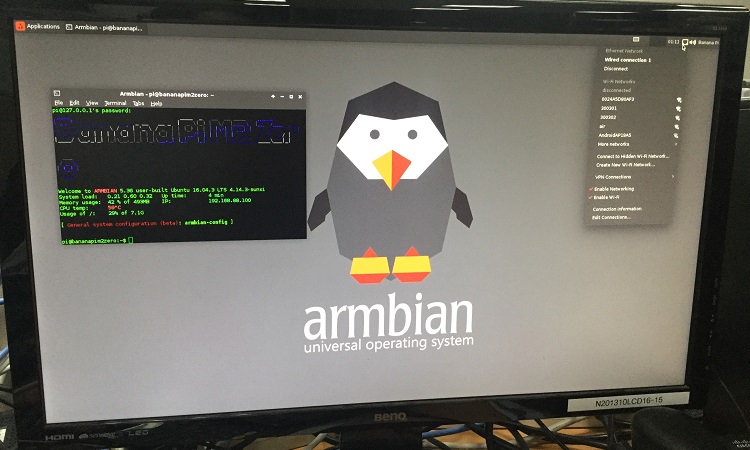
🐍 Armbian Bluetooth + Audio Control Guide
A complete guide to enable and control Bluetooth and Audio I/O (input/output) easily on Armbian or other ARM-based Debian systems.
🖌️ 1. Install Core Bluetooth & Audio Packages
bash
sudo apt update
sudo apt install -y \
  bluetooth bluez blueman \
  alsa-utils pulseaudio \
  pavucontrol pulseaudio-module-bluetooth
Package Overview
| Package | Purpose |
|---|---|
bluetooth, bluez | Bluetooth service + CLI tools |
blueman | GUI Bluetooth manager (optional) |
alsa-utils | Low-level audio tools (alsamixer, aplay) |
pulseaudio | Sound server for multiple devices |
pavucontrol | GUI volume and device manager |
pulseaudio-module-bluetooth | Enables Bluetooth audio (A2DP, HSP) |
⚙️ 2. Enable and Start Services
bash
sudo systemctl enable bluetooth
sudo systemctl start bluetooth
Optional (for PulseAudio user service):
bash
systemctl --user enable pulseaudio
systemctl --user start pulseaudio
Verify:
bash
sudo systemctl status bluetooth
🔍 3. Check Bluetooth Adapter
bash
hciconfig
If output shows UP RUNNING, it's ready.
If it’s down:
bash
sudo hciconfig hci0 up
If no adapter is detected (UART-based boards):
bash
sudo hciattach /dev/ttyS1 any 115200 noflow -
(adjust /dev/ttyS1 based on your board)
🔵 4. Connect to Bluetooth Speaker or Headset
Enter the Bluetooth control shell:
bash
bluetoothctl
Then run the following commands inside:
power on
agent on
scan on
# wait for your device MAC (XX:XX:XX:XX:XX:XX)
pair XX:XX:XX:XX:XX:XX
trust XX:XX:XX:XX:XX:XX
connect XX:XX:XX:XX:XX:XX
Exit:
exit
Verify connection:
bash
bluetoothctl info XX:XX:XX:XX:XX:XX
🔊 5. Manage Audio Output (CLI)
List audio devices
bash
pactl list short sinks
Set Bluetooth as default
bash
pactl set-default-sink bluez_sink.XX_XX_XX_XX_XX_XX.a2dp_sink
Move playing audio stream
bash
pactl list short sink-inputs
pactl move-sink-input <input_id> bluez_sink.XX_XX_XX_XX_XX_XX.a2dp_sink
🎚️ 6. CLI Volume and Mixer Control
Launch ALSA mixer:
bash
alsamixer
Controls:
- ← →: select device
- ↑ ↓: adjust volume
M: mute/unmuteF6: switch between sound cards (HDMI, Analog, Bluetooth)
🖥️ 7. Desktop Audio GUI (Optional)
If using Armbian with desktop:
bash
pavucontrol
Tabs:
- Playback: Move app outputs
- Output Devices: Select audio sink
- Input Devices: Choose microphone
🔁 8. Auto-connect Bluetooth on Boot
Create script /usr/local/bin/bt-autoconnect.sh:
bash
#!/bin/bash
MAC="XX:XX:XX:XX:XX:XX"
sleep 5
echo -e "power on\nconnect $MAC\nexit" | bluetoothctl
Make it executable:
bash
sudo chmod +x /usr/local/bin/bt-autoconnect.sh
Add to /etc/rc.local before exit 0:
bash
/usr/local/bin/bt-autoconnect.sh &
✅ Quick Command Reference
| Task | Tool | Command |
|---|---|---|
| Start Bluetooth | systemctl | sudo systemctl start bluetooth |
| List adapters | bluez | hciconfig |
| Pair device | bluetoothctl | pair XX:XX:XX:XX:XX:XX |
| Set default audio | PulseAudio | pactl set-default-sink |
| Adjust volume | ALSA | alsamixer |
| GUI control | PulseAudio | pavucontrol |
🧠 Tip: Quick Sound Test
Play test tone:
bash
play -n synth 2 sine 440
Or test audio device:
bash
aplay /usr/share/sounds/alsa/Front_Center.wav
💡 Done!
You now have a fully working Bluetooth + Audio control setup on Armbian, usable both headlessly (CLI) and via desktop tools.