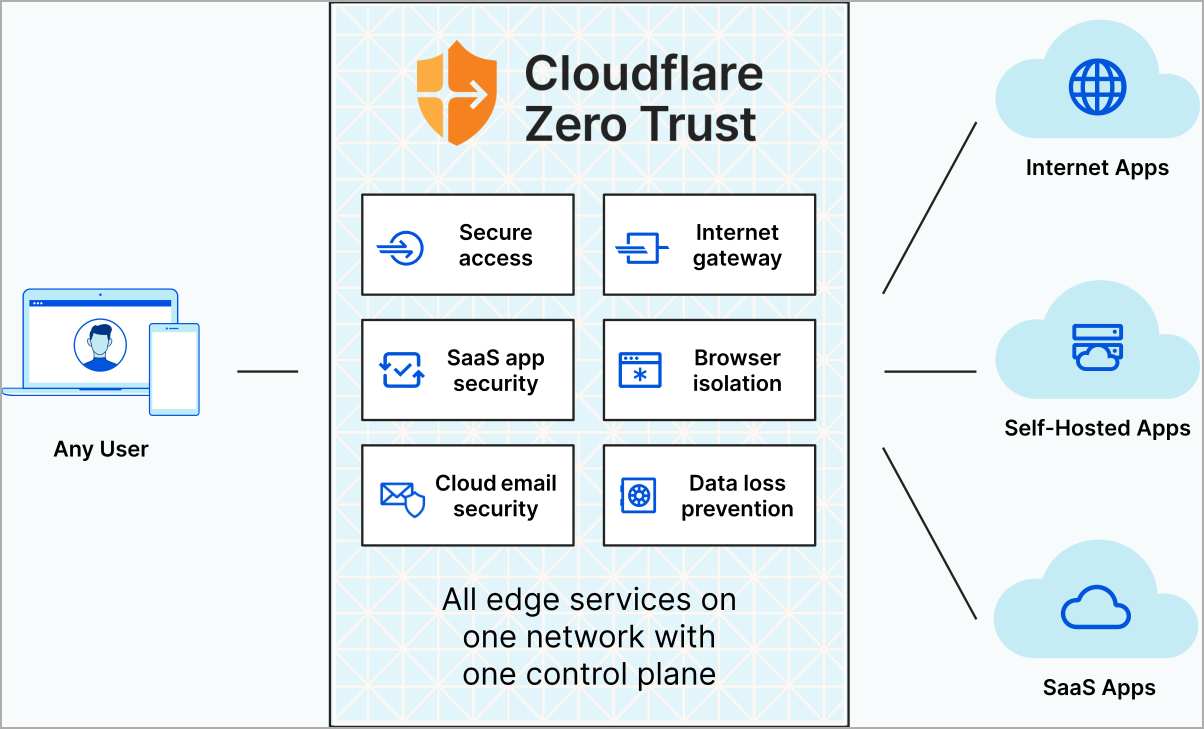
How to Set Up Cloudflare Zero Trust with WARP (Using GitHub Login)
Cloudflare WARP gives you an encrypted tunnel to Cloudflare’s edge, protecting your traffic and DNS from your ISP or router.
When combined with Cloudflare Zero Trust, you can enforce per-device authentication and policies — a mini Zero Trust network at home or work.
In this guide, we’ll configure Cloudflare Zero Trust with GitHub login as the identity provider, and enroll a device into WARP securely.
1. Create a Cloudflare Zero Trust Account
- Go to Cloudflare Zero Trust.
- Sign in with your Cloudflare account (create one if you don’t have it).
- Navigate to Zero Trust → Settings → General.
- Choose an Organization name.
- Example:
mywarporg - This is what you’ll type into the WARP client when logging in.
- Example:
2. Configure Authentication with GitHub
- In Cloudflare Zero Trust dashboard, go to:
Settings → Authentication → Add new login method. - Select GitHub.
- Now switch to GitHub:
- Visit GitHub Developer Settings → OAuth Apps.
- Click New OAuth App.
- Fill in:
- Application name:
Zero Trust WARP - Homepage URL:
https://mywarporg.cloudflareaccess.com - Authorization callback URL:
https://mywarporg.cloudflareaccess.com/cdn-cgi/access/callback
- Application name:
- Click Register application.
- Copy the Client ID and Client Secret.
- Back in Cloudflare, paste Client ID and Secret into the GitHub login method form.
- Save.
✅ At this point, Cloudflare can authenticate users via GitHub.
3. Allow Device Enrollment
Now we need to let specific users/devices use WARP.
- Go to Settings → Devices → Device enrollment permissions.
- Click Add a rule.
- Example rule:
- Action: Allow
- Include → Emails →
yourgithubemail@example.com - Require → Login method → GitHub
- Save.
This ensures only your GitHub account can enroll into WARP.
4. Enable GitHub in WARP Login Policy
By default, the special Warp Login App only accepts Email OTP.
We need to explicitly allow GitHub:
- Go to Settings → WARP Client.
- Find Login methods (or WARP client policies).
- Enable GitHub as an allowed login method.
- Save.
Now the Warp Login App will accept GitHub logins.
5. Install and Connect WARP Client
Download and install the Cloudflare WARP app:
Open WARP client.
Go to Preferences → Account → Login with Team.
Enter your org name (
mywarporg).Browser opens → choose Sign in with GitHub.
Approve login.
Return to WARP client → it should now say:
Connected – Account: mywarporg
6. Verify in Dashboard
- In Cloudflare → My Team → Devices, you should see your PC/phone listed as Active.
- You can now enforce policies like:
- Block malware or phishing domains.
- Restrict traffic to certain apps.
- Log DNS queries per device.
✅ Summary
You now have:
- A Cloudflare Zero Trust org (
mywarporg). - GitHub login as the identity provider.
- A device enrollment rule allowing only your GitHub email.
- WARP client connected through Zero Trust policies, not just as a plain VPN.
This means:
- Every device must authenticate with GitHub before it can use WARP.
- Your router/ISP can’t see DNS logs.
- You get per-device visibility and policy control in the dashboard.
⚡ Next Steps:
- Add more rules (e.g., allow multiple GitHub emails).
- Use Access Policies to protect private apps or self-hosted services.
- Explore Gateway policies for content filtering and app blocking.